1. Abstract
The use of Tilde ~ databases is a deprecated practice which is incompatible with the Subscription Hub, here we’ll look at the different options for migrating to a modern security configuration.
2. Context
Tilde databases allowed the use of very granular user-specific security, however recent versions of Board offer the same and even greater flexibility for specifying highly granular security restrictions where required, we’ll look at some of the different options and common setups that can be used to replace a Tilde configuration.
3. Content
3.1 Why Use Tilde or a Replacement?
3.1.1 Customisability
One of the main reasons we use a solution such as Tilde or one of the replacements we’ll discuss in due course is to be able to customise security configurations for different users in an easy to maintain manner to provide a bespoke experience for each user.
3.1.2 Granularity
Another key reason why we use this type of security configuration is because it allows us to specify our security at a very granular level where required, for example down to individual Cost Centre and GL Account level if such a level of security is needed.
3.1.3 Auditability
The third reason we typically use this type of setup is to make it easy to audit our security configuration and see at a glance who has access to what.
3.2 The Subscription Hub
3.2.1 What is the Subscription Hub?
The cornerstone of the modern security configuration in Board is the Subscription Hub, it provides a central repository for storing user credentials and granting permissions to the different environments.
3.2.2 What can you do in the Subscription Hub?
In here you can create users, specify their key details and grant or deny access to each of your environments quickly and simply by allocating the license you wish to give the user and then specifying a server role for each instance you want them to have access to.
For admin users you can also grant access to different admin functions such as the Admin Console for each environment and even the different areas of the Subscription Hub itself if the user is to be a system administrator.
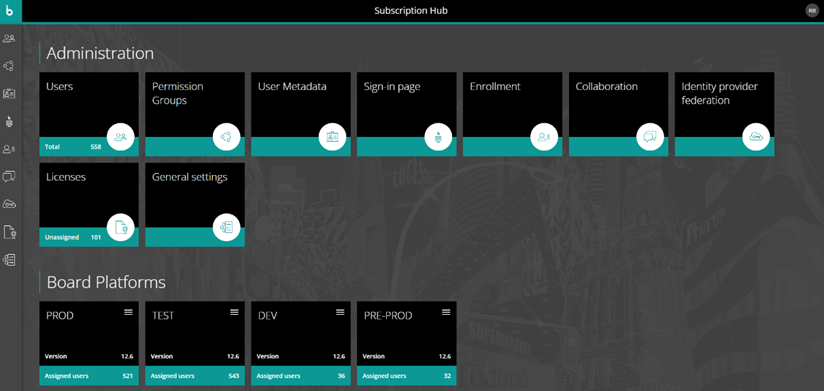
Figure 1– The home screen of the Subscription Hub showing the different admin areas and environments
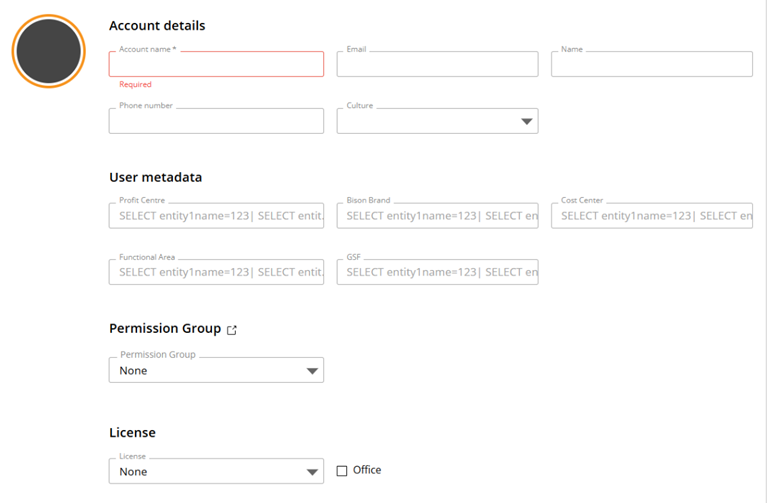
Figure 2– Creating a New User in the Subscription Hub
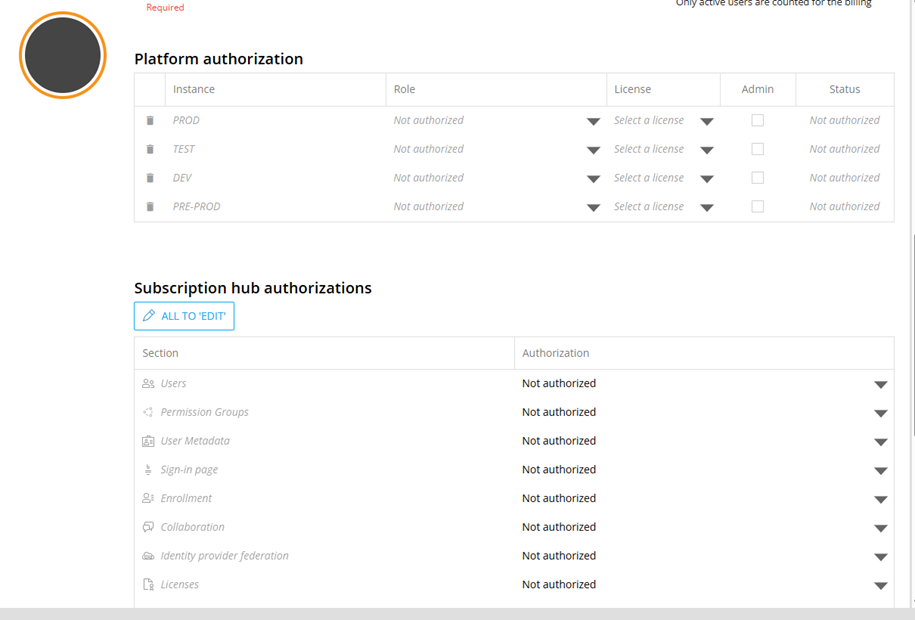
Figure 3 Granting Access to Environments & Admin Functions
3.3 Methods of Dynamic Configuration of Security
3.3.1 Metadata
One of the options the Subscription Hub gives you is the ability to create custom metadata fields which will form part of a user profile, you can create as many of these fields as required and the contents can either be free text or selected from a predefined list of values.
The contents of these metadata fields can then be used in your database security using a simple custom script, where required multiple metadata fields can be referenced and these can be combined freely with the other methods of security we’ll discuss.
For example say we were to create a custom metadata field called Profit Centre, in this field we could place a list of Profit Centre codes, comma separated, so for user Bob we enter “1234, 2345, 3456”, we can then reference this list of codes in our database security using a custom script which looks like this “SELECT Profit Centre = @var (Profit Centre)”, Board will then resolve this as “SELECT Profit Centre = 1234, 2345, 3456” and apply that selection to the database any time Bob logs in.
Alternatively we can amend the configuration slightly and put the entire select statement in the Profit Centre metadata field, so the field in the Subscription Hub would contain “SELECT Profit Centre = 1234, 2345, 3456” and the custom selection in the database security would then only need to be “@var (Profit Centre)”, in this way we can leave the metadata field blank for users who don’t need this restriction and only populate it for those who do.
Quite how you configure it is up to you, as long as your custom select resolves to a valid SELECT statement once the metadata has been substituted in, the security will be applied.
If needed you can create multiple metadata fields and reference whichever ones are required in the custom selection, for example if we added a second field called Product and for Bob we entered “SELECT Product = ABC1”, we could then have a custom selection which looked like:
“@var (Profit Centre)
@var (Product)”
Board would then resolve both substitution variables and apply both security selections for Bob every time he logs into that database.
3.3.2 Entity Select Based On
Another option present in recent versions of Board is the ability to specify dynamic security selections on particular entities based on cubes in the database, this is configured at the Database Security level and simple allows us to select any entity from the database along with a cube dimensioned by that same entity.
As an example say we want Bob to only be able to access GL Accounts which have been flagged as planning accounts, we can create a cube called FLAG – Planning GL Accounts dimensioned by GL Account, we can then populate this cube with a 1 against the GL Accounts we want to be available for planning purposes, and in the Database Security we can select GL Account as the Entity and Flag – Planning GL Accounts as the cube. When Bob next enters the database the only GL Accounts he’ll be able to see will be the ones we flagged in our new cube, if we then tick more GL Accounts Bob’s list of available accounts will then increase to reflect this as soon as he reloads a screen.

Figure 4 Select Entity Based on Cube
This approach gives us the ability to dynamically set access rights, update them easily and have any changes take immediate effect, however the solution described so far isn’t individual to Bob.
Now say we want to limit access to Product but we want to give different users different combinations of Products, we also want it to be easy to maintain and quick to update. If we use the same approach described above, we can amend it slightly and make it user specific.
First we need to create an entity which will contain the list of user names, we’ll avoid calling it User since this is a reserved keyword and let’s say we call it Board_User, we can use the Sync to Data Model option in the Subscription Hub to automatically populate it with the list of users and then use this new entity as a dimension for our matrix cube. Now we have user specific settings and we just need to amend our database security setup slightly to ensure each user picks up their respective slice of the matrix cube.
In our database security we’ll want to add a Custom Selection to select the correct tuple of the Board_User (or whatever other name you used) entity, in this case “Select Board_User=@username ”, it should something look like this:

Figure 5 Adding a Custom Select on Our User Entity
This works because @username is a preconfigured substitution variable which will automatically be replaced with the user name of the individual user , because Board applies the different types of security in the Database Security tab sequentially (hard select, custom selection, select based on cube) it will first make the user selection and then make any entity based on cube selections with that user selection applied, which combined with our user specific cube then gives us the user specific security selections we want.
3.3.3 Cube Based on Cube Security
Another addition in more recent versions of Board is the ability to restrict cube access based on other cubes, while this isn’t a direct parallel to the way that the Tilde security setup worked it may prove a useful option if you want to restrict access to specific cubes only, rather than applying the same access restrictions across the whole database.
Under Database Security at the bottom is the Cube Visibility section, in here for each profile you can specify which cubes should be visible to the user and which should be available for data entry, as well as being able to simply select the different cubes which should be available for each, you can also give selective access to a cube, based on defined criteria involving one or more other cubes.
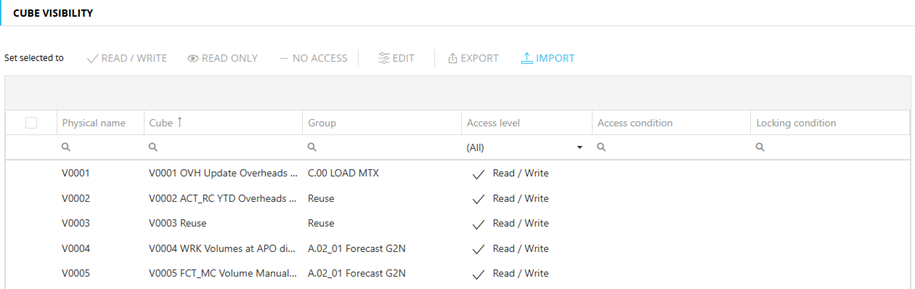
Figure 6 Configuring Cube Visibility
To specify this granular access configuration double-click on either Access Condition or Locking Condition and you’ll see a dialog similar to this one:
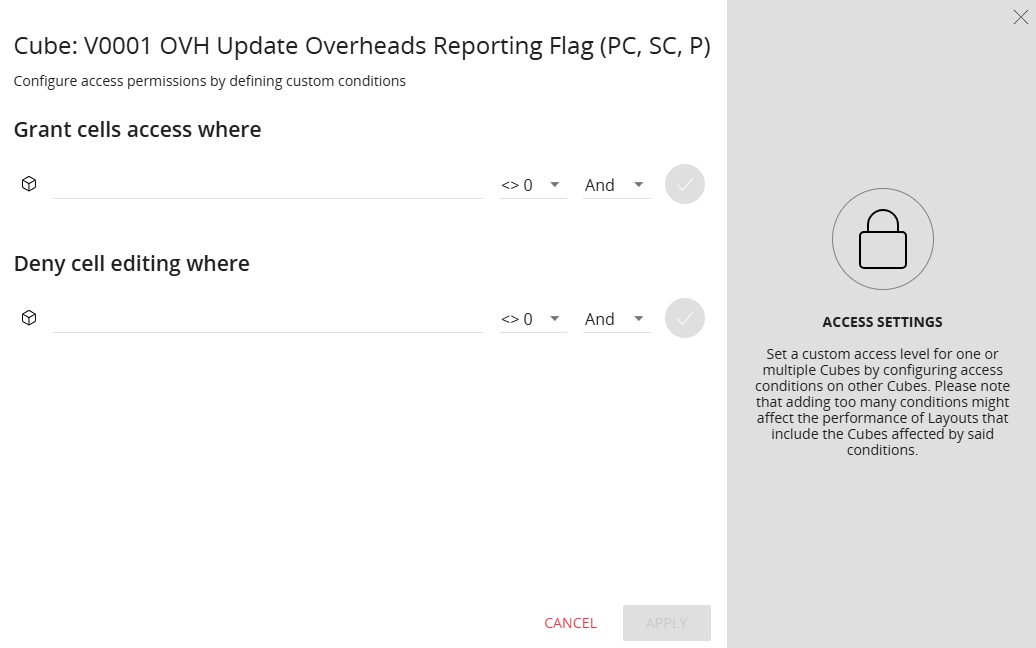
Figure 7 Specifying Granular Cube Access
In here you can choose one or more cubes along with a corresponding check to use to determine which slices of the cube the user can see or write to, if we use the cube we created in the previous section say, we could limit Bob’s access to certain cubes so that he could only see or write to the Products we flagged earlier, this means that for other cubes he’ll be able to see all Products.
This type of setup can be useful where you have certain cubes containing highly sensitive data which needs to be tightly controlled in terms of who can view or edit it, payroll data for instance, other data such as the company balance sheet might be deemed much less sensitive and the same employees who can see little or none of the payroll data might be permitted to see the entirety of the balance sheet.
3.4 Migrating Your Security
3.4.1 Choosing the Right Security Setup
Choosing the right security setup for your solution is key, there’s no one size fits all solution and depending on the nature, complexity and propensity for change of your precise requirements different solutions might be the best fit.
As well as the different methods described above, don’t forget that you can also combine more than one of these methods to achieve the result that you’re looking for.
The pro’s and cons of the different approaches can be summarised as:
Type of Security | Pros | Cons |
|---|
Metadata | - Easy to migrate from Tilde as it still uses strings
- Keeps security all managed in the Subscription Hub
| - Less flexible than other methods
- Time consuming to maintain if security changes regularly
- Harder to audit due to the use of strings rather than matrices
|
Entity Based on Cube | - Flexible
- Easy to maintain via a simple Board front end
- Easy to audit as selections can be easily surfaced in reporting
| - Requires a little more effort to migrate from Tilde
- Means security is split between the Subscription Hub and wherever the cubes are managed
|
Cube Based on Cube | - Flexible
- Easy to maintain via a simple Board front end
- Easy to audit as selections can be easily surfaced in reporting
- Highly granular allowing for security to be selectively applied
| - Only limits access to cube data, doesn’t limit the actual entity values the user sees
- Requires a little more effort to migrate from Tilde
- Means security is split between the Subscription Hub and wherever the cubes are managed
|
3.4.2 Extracting Your Security Data for Migration
The nature of the extract you’ll require will depend on the setup you’ve chosen to use to replace Tilde, if you’ve elected to go with a metadata approach then the strings used in your Tilde database can essentially just be extracted and copied into your new metadata field, as the format is basically the same.
If you’ve elected to use either Entity Based on Cube or Cube Based on Cube then you’ll need to have your config data in a CSV or Excel format, CSV if you want to be able to load it via data reader or Excel if you plan to use Smart Import for loading it in. Either way you’ll probably want to use something like Excel to convert the strings – of course if your existing solution involves generating the strings to be used from either a dedicated database or other such method of selecting user permissions then this may not be required and you might already be well set to create the files you need.
3.4.3 Whether to Create a Dedicated Front End?
Whether or not you need to consider creating a dedicated front end for managing your security depends first on the setup you’ll be going with and second on whether you have an existing method of generating the strings or selections you’ll need.
If you’re going with an Entity Based on Cube or Cube Based on Cube approach then a dedicated Board database and capsule for managing these selections can be a very useful approach – it allows for separation of security configuration from other data and means that your configuration can then be interfaced from your security database to multiple planning or reporting databases as required.
3.5 Final Points to Consider
3.5.1 Performance
Since your security model underpins your entire solution, the performance of your security if obviously key to the performance of your solution as a whole, as such it’s important to ensure that you follow some basic rules:
Avoid excessive complexity – the more different security rules you have the more processing Board is doing in the background to apply your security, try to keep your model as simple as possible.
Avoid using large cubes as matrices when implementing Entity Based on Cube or Cube Based on Cube security – remember that Board is essentially running a layout to apply the security restrictions and the larger the cube the slower the layout, if you want to use a cube which is larger or more dimensional than required, then consider flowing it into a smaller matrix cube using only the dimensions needed and populated with 1’s and 0’s to keep the size a small as possible.
3.5.2 Maintainability
Remember that you’ll need to be able to maintain your new security model, if your security is fairly static this is less of a concern but if it changes frequently you’ll want to make it as painless to update as possible, a little time invested in creating a simple front end for maintaining security selections can save a lot of time in the long run.
3.5.3 Future Proofing
Remember to think not just about what you currently require from your security, but what you might require a couple of years down the line – building in sufficient flexibility to accommodate potential future use cases can save a lot of time and effort redesigning it later on.
