
1. Abstract
More and more companies need to perform planning under highly concurrent conditions, rather than a few planners inputting large amounts of data for the whole company, responsibility is instead shared across the business for one or more key users in each area to do their own planning, with the input then rolled up to create the company forecast.
2. Context
2.1 What is high concurrency?
A highly concurrent system at the simplest level is just a solution used by a large number of users at the same time, this can present a number of challenges:
- resource consumption due to all those users querying and updating various cubes
- contention and possibly queueing for specific resources such as two users writing values to the same cube
- and even in some cases contention for the same cell of data if multiple users are trying to update the same cube for the same selection simultaneously
- ensuring processes are designed in such a way as to avoid unintended and unwanted interaction between parallel processes
2.2 How do we deal with high concurrency?
As we’ll see below there are a number of steps we can take to mitigate the effects of high concurrency, by planning properly and designing our solution in the right way we can limit the resource usage to only what’s absolutely required, ringfence processing to reduce the chances of multiple users touching the same cells of data simultaneously, and ensure our processes can run concurrently without unintended interactions.
3. Content
3.1 Screens & Layouts
While it might sounds obvious to ensure that your screens are performant, in a high concurrency system it can be doubly so. The basic principles of performant screen design can be divided into a few areas.
3.1.1 Default Selections & Screen Triggers
One of the most important factors in the performance of any screen is the selection which has been applied, failure to apply the right selections can result in your layouts processing many more rows than necessary and as a result consuming significant resources.
When designing your screens always think first about exactly what data needs to be displayed and try to limit your selection accordingly – this might be via default selections on the screen or via more dynamic selections in a screen trigger, either way think about the dimensions used in your layouts and plan your selections accordingly.
3.1.2 Using Performant Layouts
There are a few factors which come into play when designing performant layouts:
The number of blocks used – try to ensure that layouts only include necessary blocks, if a layout changes ensure that any blocks no longer needed are removed
The number of entities used on the axes – don’t be tempted to think that you need to include all relevant entities on the axes of your initial layout, often keeping the initial layout compact and easy to read and making use of drills to allow the user to see more detail only where necessary can be more effective
Use of filters rather than selections – while there’s nothing wrong with using filters in layouts, it’s important to understand that they work differently to selections, a selection limits the data set over which Board runs your layout, a filter just filters the result set after the results of the query have been returned. Where possible try to use selections first and foremost and filters only where needed.
Using the appropriate component – one of the more recent additions to Board is the Flex Grid, this component is specifically designed for displaying large amounts of granular data on a screen and can do so far more quickly than a data view. Functionality differs between the two components as does their intended uses, ensuring you use the correct component for your needs can make a big difference to the performance of your screen. A comparison of the two can be found here.
3.1.3 Avoiding Unnecessary Processing
A common mistake to make can be including unnecessary processing in either a save procedure or a screen trigger, it can be tempting to refresh data in these procedures because it’s convenient rather than strictly necessary. Where possible data should be refreshed only when needed, repopulating a cube every time a screen is loaded might not seem like a big deal when it’s being tested with a handful of users, but when 200+ users are opening the screen on a regular basis throughout the day it can quickly contribute significantly to the overall load on the system. Try to ensure that datasets are refreshed on an as needed basis, and that things like screen triggers and save processes which might be called a lor of times during the day are only performing the processing they actually need to.
3.2 Extracts & Data Readers
It’s not uncommon in any solution to have processes which create extracts, these might be for extracting and reloading a tree for normalization purposes, for interfacing data between databases or for using data from one hierarchy to populate another. When creating extracts in a concurrent system it’s important to always consider the possibility that multiple users could run the same process simultaneously, and as such to ensure that no possibility exists of one user overwriting another user’s data, to achieve this a few simple rules should be observed:
3.2.1 Separation of Processes
Where extracts are created by different processes within a system it’s a good idea to clearly separate them, this could be by using distinct naming which incorporates the name of the process as well as a description of the data being extracted, or even better by using subfolders to keep the different datasets completely separate. Doing this avoids unintended interaction between separate processes which might use the same cubes and hierarchies and might otherwise create extracts with the same names, this is particularly important where the same user might choose to run multiple processes simultaneously on different tabs to save time. Using separate folders for your extracts is as simple as including the folder name to use in the extract path, Board will automatically create any new folders as required.
3.2.2 Incorporating User Name in File Names
When creating extracts in concurrent processes you should always include the user’s user name in the filename, this ensure that each user will create their own set of extract files and can’t overwrite those of other users. This can be easily achieved by including @User in the file name for the extract , the same string can then be used in a data reader call to dynamically generate the matching file name.
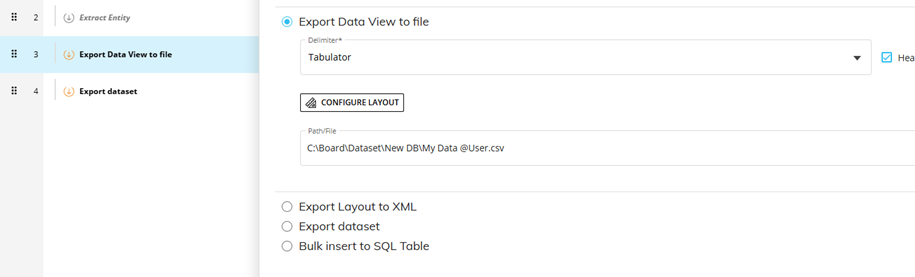
Figure 1 Extracting a File and Including User in the Name
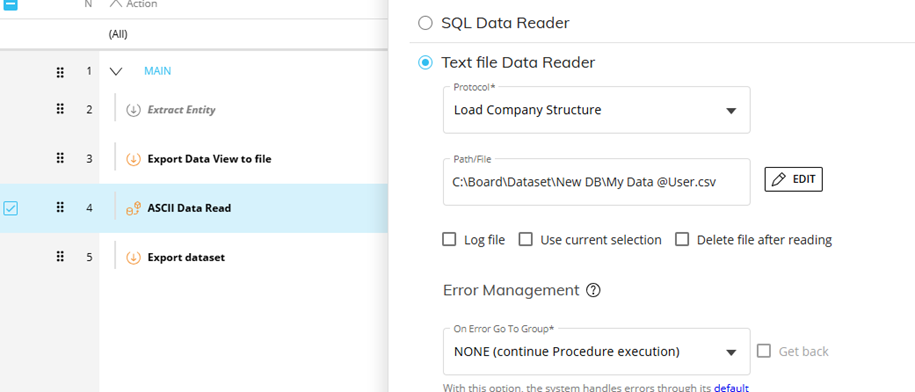
Figure 2 Loading the Same File and Dynamically Generating the Same Name
3.3 Procedures
In a highly concurrent system performance is typically one of the biggest challenges – large numbers of users updating the same set of cubes with often sizeable volumes of data can lead to contention for resources and multiple processes queueing, however there are ways in which we can mitigate these issues as long as we keep certain factors in mind.
3.3.1 Use of Temp Cubes
One of the best ways to limit the amount of task queueing is to make use of temporary cubes, a temporary cube is created for a single execution of a particular procedure, it exists for and is used by only the user who triggers that procedure, this means that two users running the same procedure in parallel will have their own sets of temporary cubes with no contention when using them.
Ideally in a highly concurrent procedure temporary cubes are used to take a copy of any data required from physical cubes at the start of the procedure, and then those temporary cubes are used to perform any calculations and transformations before writing back to a target physical cube at the end of the procedure, in this way we limit interaction with physical objects to a minimum number of touch points, all of those calculation steps in the middle of the procedure are run on temporary cubes with zero contention. In reality of course most procedures will have multiple steps interacting with physical cubes, a complex procedure may need to pull data from multiple sources and maybe need to write to multiple cubes as well, however using temporary cubes where possible to minimise interaction with physical cubes is still highly beneficial.
3.3.2 Limiting Scope
In any procedure to ensure the best possible performance it’s important to use the right selections, it limits the amount of data we have to handle and ensures that we aren’t consuming more resources than necessary.
In a highly concurrent system ensuring we limit the scope of our processing becomes even more important, if multiple users are running the same processes in parallel but for different slices of the data – for different Cost Centres say, then we want to ensure that our selections reflect this and that as much as possible we avoid those users touching the same cells of data. Not only does this then ensure that we see the best possible performance, but it also avoids the queueing that can occur when two users access the same exact cells of data and one has to wait for the other to release a lock.
The other reason why it’s important to limit scope as much as possible in highly concurrent procedures is to avoid a potential downside of using temporary cubes – if a user runs a procedure which snapshots some data into a temporary cube, then performs a large amount of processing before it writes the results out, it increases the chance that a second user could update the dataset that the first user took a snapshot of while the first user is running the procedure, meaning that when the first user’s results are written back to a physical cube they could now be out of sync with the data which was originally snapshotted.
Keeping our procedures as performant as possible and ensuring we minimise the scope of our processing as much as we can is therefore vital for a system which we know will be used under highly concurrent conditions.
3.3.3 Use of Physical Flags
In the main most planning systems will consist largely of processes which can and will be run in parallel by multiple users, however sometimes there may be processes so critical that it’s necessary to limit the level of concurrency, either by limiting processing so that only one user can process a given Cost Centre at a time say, or in the most extreme cases so that only one user at a time can use the process at all.
Where this level of concurrency control is required we’ll typically need to use a physical flagging cube, the dimensionality of this cube will reflect the granularity of control required (system wide, Cost Centre specific, etc.) and it will be used to lock and unlock the process in question accordingly.
The basic implementation of this kind of locking is very simple, once you’ve created the locking cube the procedure to be locked will need an IF step at the start to check whether the process is currently locked, if the cube is currently empty then the process is unlocked, in which case the procedure will populate the flag to indicate that the procedure is now locked, and then proceed to run as normal before clearing the locking cube down again as a final step to unlock the procedure for the next user.
If when the procedure checks the locking cube at the start of the procedure it discovers that the cube is populated and the process is therefore locked, this can be handled in a couple of different ways depending on the desired behaviour:
Option one is that the procedure simply pops up an alert informing the user that the process is currently locked and that they’ll need to try again later, this might be appropriate for a process which is only occasionally used where simultaneous usage will be rare but still needs to be guarded against, but for a frequently used process it probably isn’t the user experience we’re looking for.
Option two is used when we want to prevent concurrent running but we also want as smooth a user experience as possible, and to allow the second user to run the procedure as soon as it becomes available. In this scenario we typically use a loop with a WAIT statement to essentially put the user into a holding pattern until the flag is cleared and they can proceed, to the user this holding pattern should be essentially invisible, all they’d see is that the process might take slightly longer to run due to the wait for it to be able to start.
With either of these approaches it’s important to ensure that if an error occurs the locking flag can be cleared if necessary, otherwise if something causes the procedure to fail while a user has it locked the locking cube will remain populated preventing anybody else from running it.
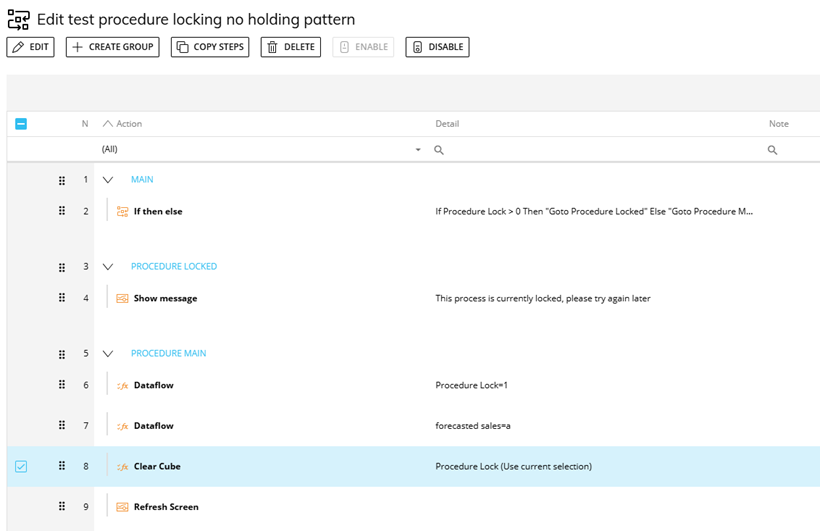
Figure 3 Using a Locking Cube Without a Holding Pattern
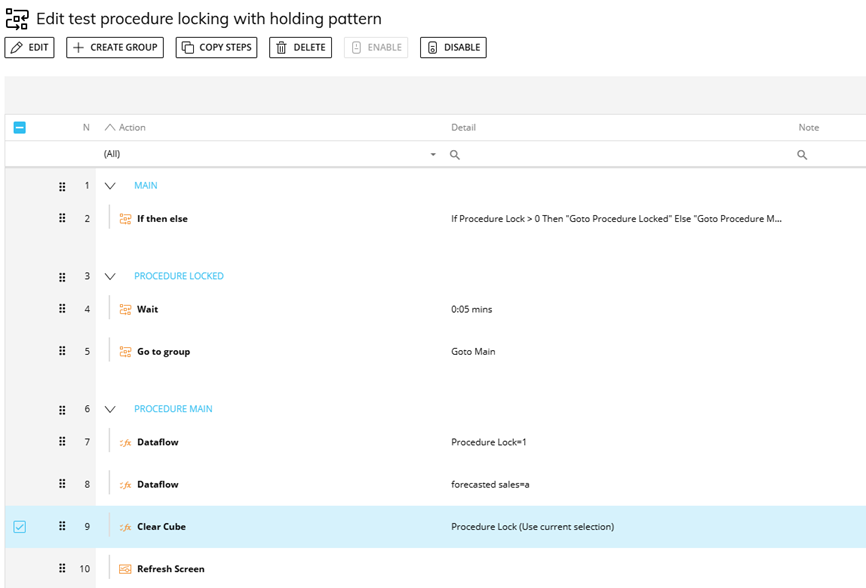
Figure 4 Using a Locking Cube With a Holding Pattern
3.4 Board Configuration
3.4.1 Environment Settings
In any Board solution environment settings can play an important role in limiting the size of queries that users can run and thereby preventing excessive consumption of resources by a single user, however in a highly concurrent system this becomes even more important.
One of the additions to Board in recent versions has been new environment settings which enable us to more easily limit the size of layouts that users can run, it’s now possible to limit based on:
- The number of cells to be rendered
- The total combined selected tuple count of the entities used in the layout
These settings are defined at a server level and as such to change them you’ll need the assistance of our Cloud Ops team, finding the right level to set these at can be key to ensuring that users can run the reports they need while mitigating the risk of a user inadvertently running an excessively large layout which might consume substantial resources and impact other users. It should be noted that some of these settings apply only to data views and not to Flex Grid.
3.4.2 Use of Mandatory Selections
A simple and effective method of preventing a user from running a query or process with a larger scope than intended can be by enforcing a mandatory selection on a screen, this might be achieved by using either a Pager or a Selector set to single selection, but either way it can ensure that the user is required to have a single selection on a key entity.
Where it might be necessary to allow the user to make multiple selections but to still guard against excessively large selections, it might be possible to use a procedure for making the selection and to have a check point which validates the number of tuples selected by the user versus a defined limit. This can be achieved fairly simply using a cube dimensioned by the entity in question which can be used to get a count of the selected values, if this exceeds the limit set then a warning can be displayed and the user can be required to remake their selection.
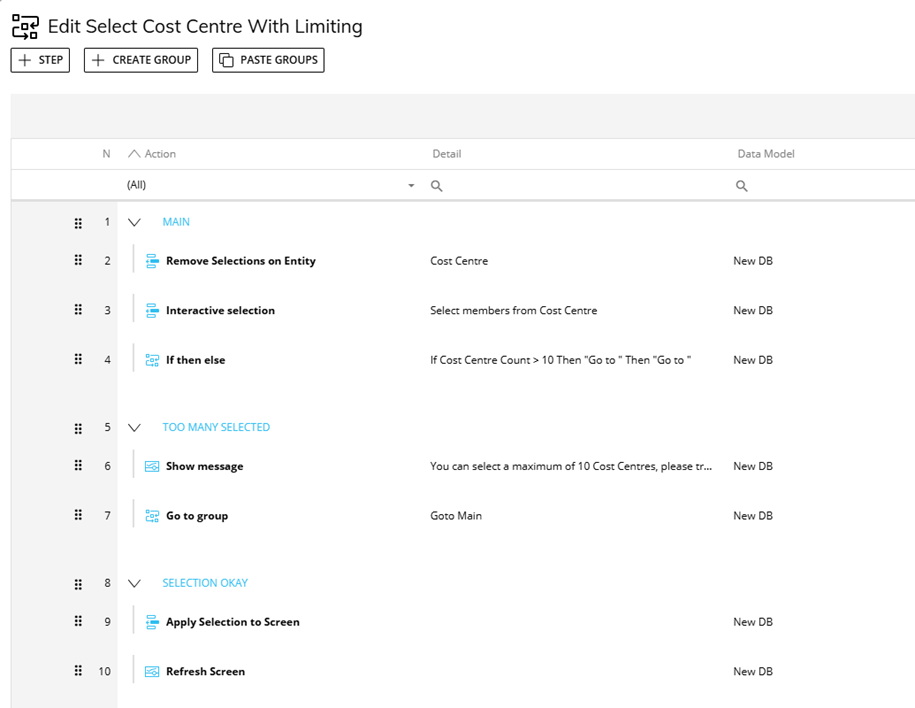
Figure 5 An Example of Limiting a User Selection
3.4.3 Log Settings
One aspect it’s important to consider with a highly concurrent system is the sheer level of user activity, depending on the number of users on the system the number of user actions per hour could easily be in the hundreds of thousands, and those actions should easily result in millions of log entries. As a result it’s important to weigh off the need to retain sufficient information in the logs to aid with diagnosing issues, against the resulting size of the logs and the disk I/O required to write all of those records.
Some logs are predefined in the way that they work – the capsule and database logs will automatically capture relevant information without any need for specific configuration, however some other logs are either optional or can be configured to set the level of verbosity required.
3.4.3.1 The Diagnostic Log
The diagnostic log contains a wealth of information regarding the backend activity on a Board server, it can be configured to capture differing levels of verbosity and these can significantly impact the volume of data captured. The options for the Diagnostic log range from Fatal to Trace, Fatal will only capture information regarding the most severe of errors whereas Trace will essentially capture everything, including large amounts of contextual information useful when tracing the cause of a particular issue but not otherwise required. In general the advice would be to set the log verbosity no higher than Information unless you’re attempting to trace the cause of an issue, however with a highly concurrent system, due to the amount of activity on the system and the resulting log size, you might want to consider lowering this to Warning. More details on what each verbosity level captures can be found here.
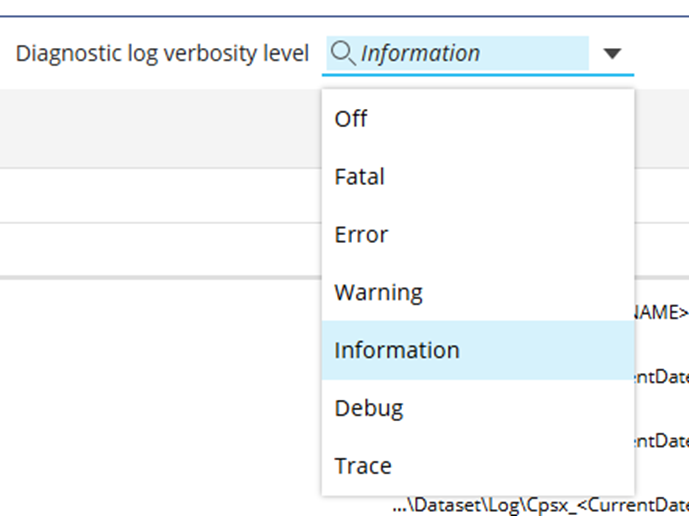
Figure 6 Verbosity Options for the Diagnostic Log
3.4.3.2 The Data Entry Log
The Data Entry Log will capture the every value inputted via data entry by every user, as a result in a planning system it can quickly generate a huge amount of log content. This might be useful in certain scenarios where it’s critical to track and audit data entry, but in general it’s better to keep this log turned off unless it’s specifically required. On a highly concurrent system with a large number of users inputting data it’s even more important to consider whether this level of logging is really required, as it will have a very significant impact on the level of disk I/O.
4. Conclusion
In highly concurrent planning environments, performance and data integrity depend on thoughtful design choices across screens, processes, and system configuration. By limiting scope, leveraging temporary structures, and isolating user interactions, organization scan significantly reduce contention and resource strain. Ultimately, adopting these best practices ensures scalable, reliable planning processes that support widespread user participation without compromising system efficiency.
