
1. Abstract
This guide explains how to integrate the Board platform with Databricks across different deployment scenarios. It focuses on two primary connectivity approaches: JDBC-based integration via Hybrid data pipeline for Board Cloud environments, and ODBC-based integration for Board On-Premises installations. The article outlines the required configurations, authentication methods, prerequisites, and key considerations to establish a reliable and performant connection to Databricks SQL warehouses.
2. Context
Modern data architectures frequently rely on platforms like Databricks to manage and process large-scale data using distributed compute engines. To enable planning, analytics, and reporting in Board, this data must be made accessible through supported connectivity methods.
Board supports different integration patterns depending on the deployment model:
- In Board Cloud environments, connectivity to Databricks is typically established using JDBC via Data Pipeline, which acts as the central integration layer.
- In Board On-Premises environments, connectivity is achieved using ODBC drivers installed locally on the Board server.
In more advanced or secure network configurations (for example, when Databricks is deployed behind private endpoints or restricted networks), the On-Premises Connector (OPC) can be introduced as part of the Data Pipeline architecture to bridge connectivity. While OPC is not covered in detail in this guide, it may be relevant in scenarios where direct outbound connectivity from Data Pipeline is not possible.
Because Databricks is built on a Spark-based engine, there are some important considerations—such as metadata handling and SQL behavior—that differ from traditional relational databases. These should be taken into account when designing and configuring the integration.
This guide is intended for technical users responsible for implementing and managing Board integrations with Databricks across both cloud and on-premise environments.
3. Content
3.1 Authentication Methods
Databricks supports the following authentication methods for both JDBC and ODBC:
Method | Description | Recommendation |
|---|
Personal Access Token (PAT) | Token generated in Databricks workspace | Simplest and most commonly used |
OAuth 2.0 (Service Principal) | Machine-to-machine authentication using Azure AD / service principal | Enterprise / secure environments |
3.2 JDBC Connection (Board Cloud via Data pipeline)
Step 1- Create a new JDBC connection in data pipeline
The Databricks JDBC (Simba) driver is already available in Data pipeline by default, so no manual driver upload is required.
To begin, simply create a new JDBC connection
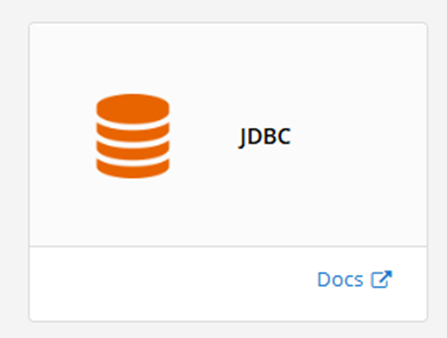
Step 2 - Configure JDBC Connection in Data pipeline
- Driver Class – com.databricks.client.jdbc.Driver
- Server Hostname (e.g. adb-xxxx.azuredatabricks.net or dbc-xxxx.cloud.databricks.com)
- Port: 443
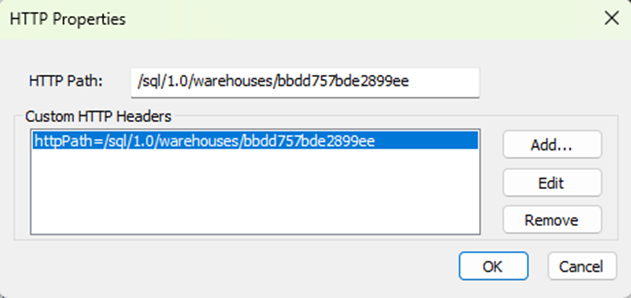
- HTTP Path (from SQL Warehouse- e.g. /sql/1.0/warehouses/bbdd757bde2899ee)
- Catalog/Schema (optional but recommended)
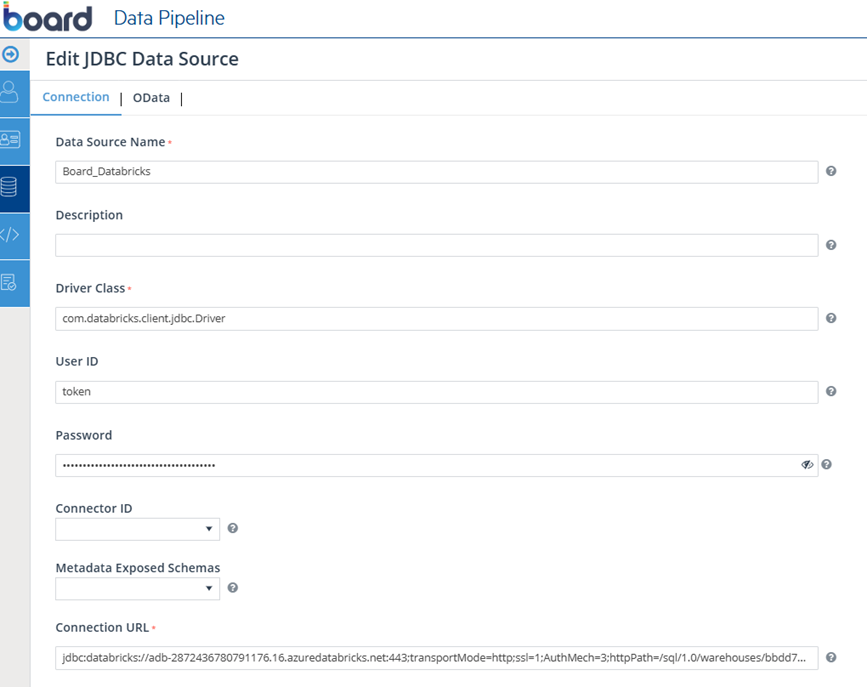
JDBC Configuration - PAT Authentication
Connection URL:
- jdbc:databricks://<server-hostname>:443;
- transportMode=http;
- ssl=1;
- httpPath=<http-path>;
- AuthMech=3;
- UID=token;
- PWD=<personal-access-token>;
- ConnCatalog=<catalog>;
- ConnSchema=<schema>;
In this configuration:
- AuthMech=3 indicates PAT authentication
- UID=token is required
- PWD contains the personal access token
Databricks identifies AuthMech=3 as PAT authentication for the JDBC driver.
Example:
jdbc:databricks://adb-2872436780791176.16.azuredatabricks.net:443;transportMode=http;ssl=1;AuthMech=3;httpPath=/sql/1.0/warehouses/bbdd757bde2899ee;ConnCatalog=samples;ConnSchema=nyctaxi;socketTimeout=0;
JDBC Configuration – OAuth 2.0 (Service Principal)
Connection URL:
- jdbc:databricks://<server-hostname>:443;
- transportMode=http;
- ssl=1;
- httpPath=<http-path>;
- AuthMech=11;
- Auth_Flow=1;
- OAuth2ClientId=<Client-ID>;
- OAuth2Secret=<Client-Secret>;
- ConnCatalog=<catalog>;
- ConnSchema=<schema>;
In this configuration:
- AuthMech=11 indicates OAuth 2.0 authentication
- Auth_Flow=1 indicates the use of the OAuth 2.0 Client Credentials flow (M2M)
- OAuth2ClientId – The application ID of the service principal
- OAuth2Secret – The client secret for the service principal
Example:
jdbc:databricks://adb-2872436780791176.16.azuredatabricks.net:443/default;transportMode=http;ssl=1;httpPath=/sql/1.0/warehouses/bbdd757bde2899ee;AuthMech=11;Auth_Flow=1;OAuth2ClientId=********************;OAuth2Secret=**************************;
Important: Avoid exposing full catalogs or schemas in Databricks when configuring the connection.
Always define:
- ConnCatalog=<catalog>
- ConnSchema=<schema>
This helps:
- Improve metadata discovery performance
- Prevent timeouts during schema browsing
- Reduce unnecessary load on the Databricks environment
3.3 ODBC Connection
For on-premise Board installations, connectivity to Databricks is established using the Databricks ODBC driver installed on the Board server.
Step 1 - Install ODBC Driver
- Install the Databricks ODBC Driver
Step 2 - Configuration
ODBC Configuration PAT Authentication
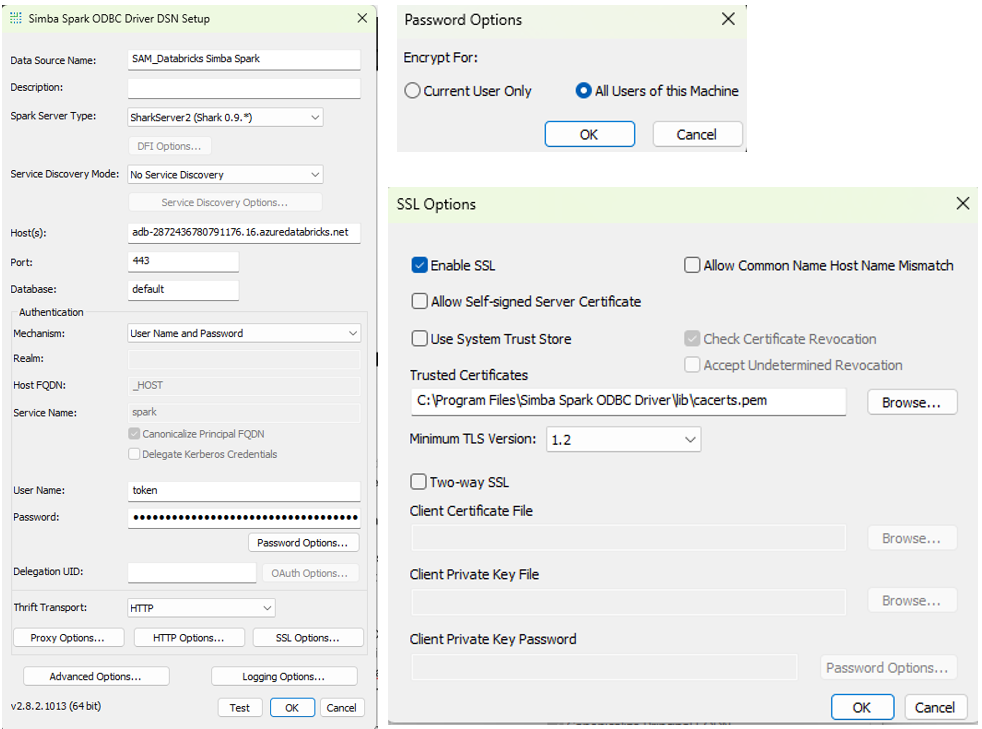
In the HTTP Properties, setup the HTTP Path which is the unique path for the specific Databricks SQL Warehouse or cluster
Advanced Options: Server Side Properties
The catalog and schema are set using Server Side Properties (databricks.catalog, databricks.schema) to limit metadata exposure.
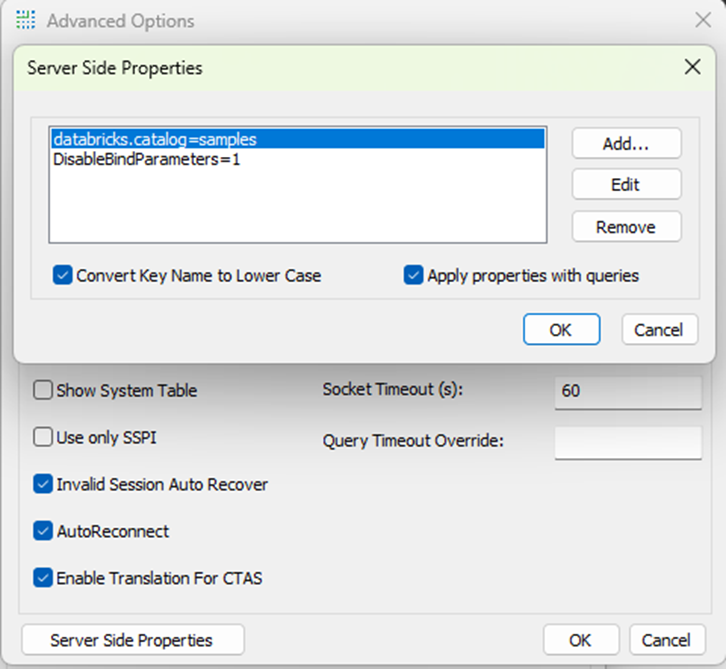
Set databricks.catalog and databricks.schema to limit metadata exposure and improve performance.
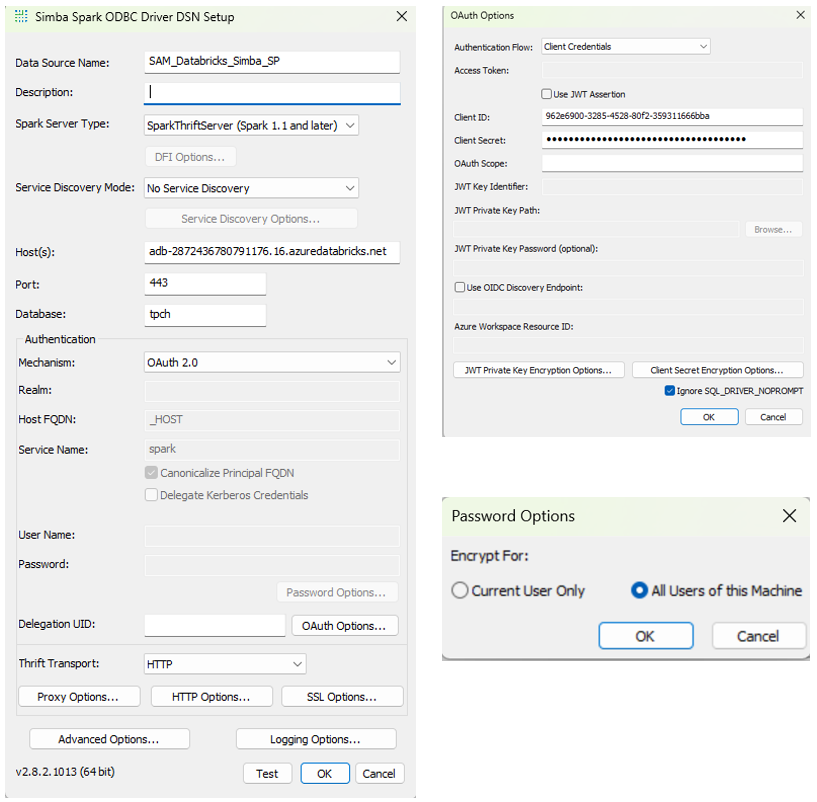
ODBC Configuration OAuth 2.0 (Service Principal)
Except for the authentication the rest of the configuration remains the same (SSL options, HTTP Properties, Server Side Properties)
3.4 Board Configuration and Schema Discovery
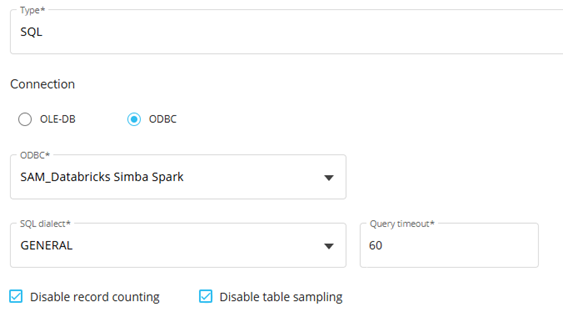
Data Source Configuration and SQL Dialect
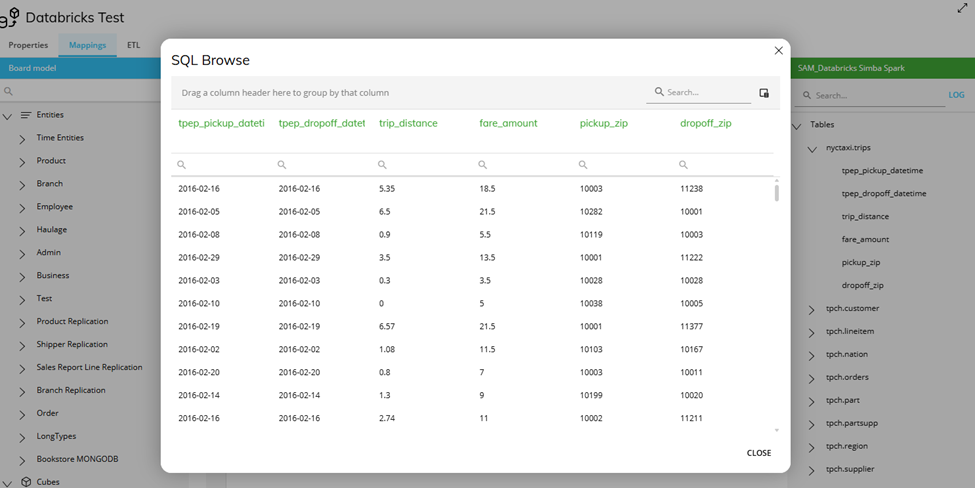
Schema Discovery and Browse in Data Reader
3.5 Limitations
Bulk Insert/Writeback
Databricks is built on the Apache Spark engine, not a traditional RDBMS.As a result, it does not support parameterized queries, which are used by Board for bulk insert operations.Direct writeback / bulk insert from Board is not supported
Workarounds
- Write back to a relational layer such as PostgreSQL (e.g., Lakebase within Databricks) using PostgreSQL JDBC/ODBC drivers
- Use a staging RDBMS (e.g., SQL Server, PostgreSQL) and then load data into Databricks via ETL pipelines
SQL Behavior
Spark SQL differs from traditional databases and may impact Drill-through
Metadata Performance
Foreign catalogs can lead to slow browsing and timeouts
3.6 Best Practices
Limit Metadata Scope
- JDBC
- ConnCatalog=<catalog>
- ConnSchema=<schema>
- ODBC:
- databricks.catalog=<catalog>
- databricks.schema=<schema>
These parameters serve the same purpose in JDBC and ODBC, but use different naming conventions.
Use SQL Warehouse
Prefer Databricks SQL Warehouse (Serverless)
- Faster startup/cluster spin-up- reduces connection delays and overhead
- Better Performance and concurrency
- More stable connectivity
4. Conclusion
Integrating Board with Databricks is straightforward using standard connectivity methods, with JDBC via Data pipeline for Board Cloud and ODBC for on-premise deployments.
While Databricks is highly optimized for analytical workloads, its Spark-based architecture introduces some differences compared to traditional relational databases particularly around writeback and query behavior. By applying the recommended configuration practices (such as limiting metadata scope and selecting the appropriate authentication method), a stable and performant integration can be achieved.
For writeback scenarios, adopting a staging or relational layer approach ensures compatibility while maintaining the scalability and performance benefits of Databricks.
