Best Of
How to install BOARD Office Add-In with command line in unattended mode
BOARD Office add-ins can be installed with a Command Line using MSIEXEC
To install the, follow the following steps:
In the start menu, right-click Command Prompt and choose Run as administrator.
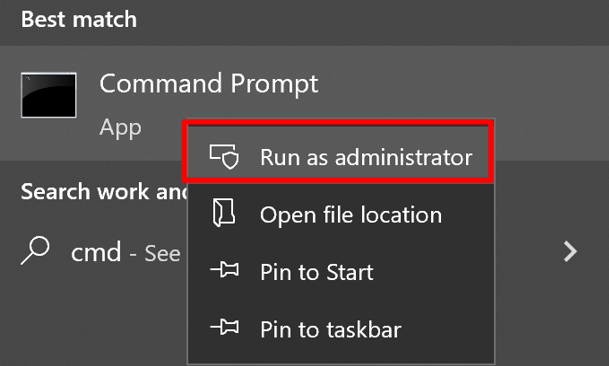
Locate the MSI file for the version of the add-in you want to install. This is often in the Downloads folder.
Use the following command line to install the BOARD Office Add-In in unattended mode. Replace “B7CResources.msi” with the file location of the .msi file.msiexec /i B7CResources.msi /qn
Optionally, you can use additional parameters to further customize your installation.
Note: All feature names declared within the command line parameters are case-sensitive. It is important to use the proper case when identifying elements to be installed.
Parameter definitions:
Parameter | Description |
|---|---|
/qn | Specifies there's no UI during the installation process. |
/i | Specifies normal installation. |

Troubleshooting: Blank Screen while Connecting to Board Web Server
When connecting to BOARD 10 Web Server using Internet Explorer, a blank screen prompts out.
Problem Cause: Browser IE 11 is working in compatibility mode with Internet Explorer 9
Problem Solution: Disable the compatibility mode option.
- Click on the Tool icon from Internet Explorer

- Click on Compatibility View settings

Check that:
- The two options Display intranet in compatibility view and Use Microsoft compatibility lists are disabled.
- The Server address is not included in the list of Website you've added to Compatibility View